

Following the WWDC26 announcement in March, Apple has now started building excitement for its upcoming software-focused event with a glowing promotional design and a fresh set of exclusive wallpapers. The new exclusive wallpaper collection is titled “Glow All Out”, and it is available for Mac, iPad, and iPhone. Here you get to download WWDC Glow All Out wallpapers. These wallpapers are different from the previously shared illuminated logo wallpapers.
WWDC 2026 event is scheduled to take place from June 8 to June 12. As usual, the keynote presentation will kick off on the first day, June 8 at 10:00 a.m. PT, where Apple is expected to unveil the next generation of its software platforms, including iOS 27, iPadOS 27, watchOS 27, and more.
WWDC26 Glow All Out Wallpapers
This year’s WWDC event is now just a week away, and the excitement is at its peak after Apple’s recent promotional tease. Apple often releases exclusive wallpapers to mark special achievements and occasions like this, and WWDC 2026 is no exception. If you’re looking forward to the event, you can celebrate the countdown with the new Glow All Out wallpaper.
The wallpaper features a close-up view of an illuminated Apple Logo, creating a striking glow effect. The design focuses on the upper portion of the logo, with only about the top 25% visible while the rest is cropped out.
If you’d like to see how the new Apple WWDC 2025 Glow All Out wallpapers look across different devices, check out the preview images below.
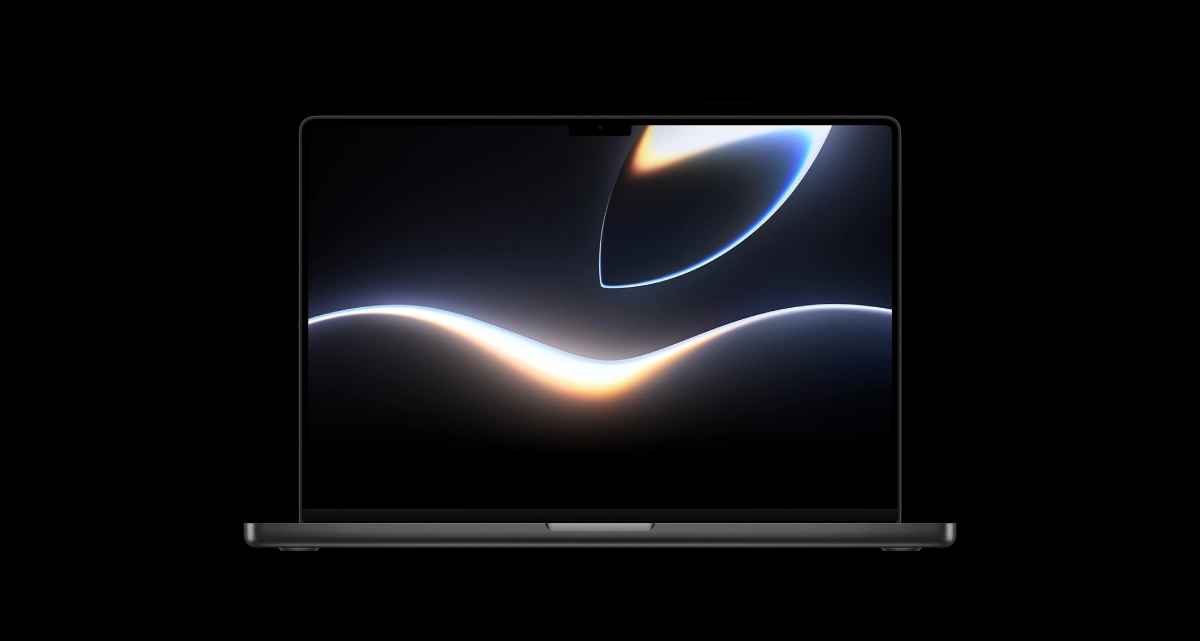
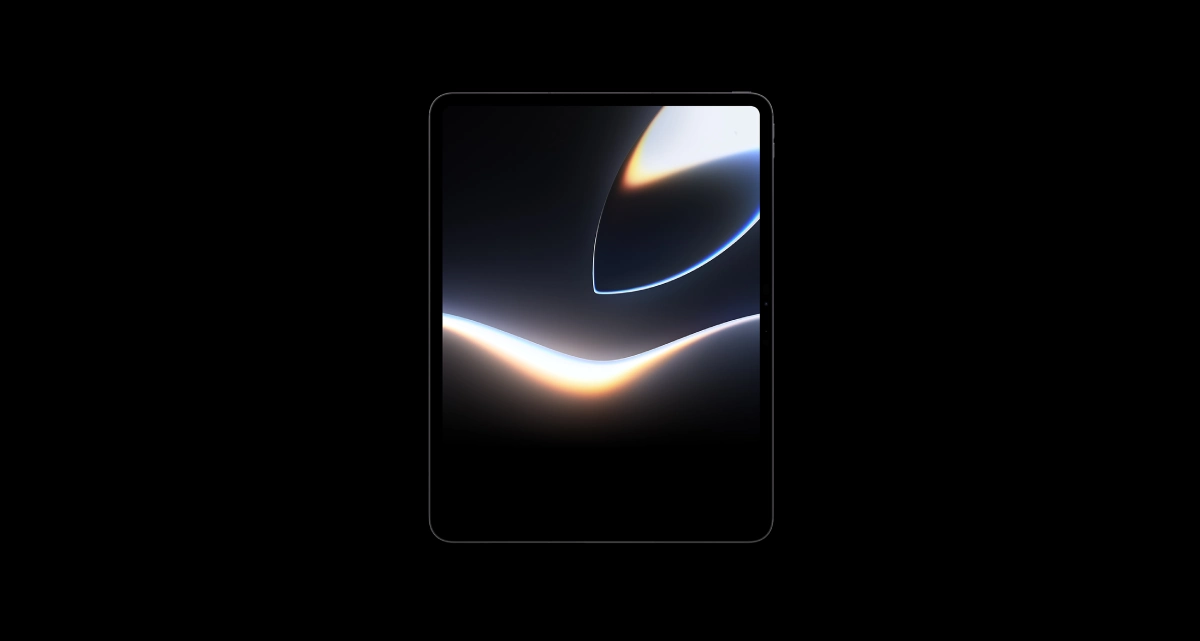
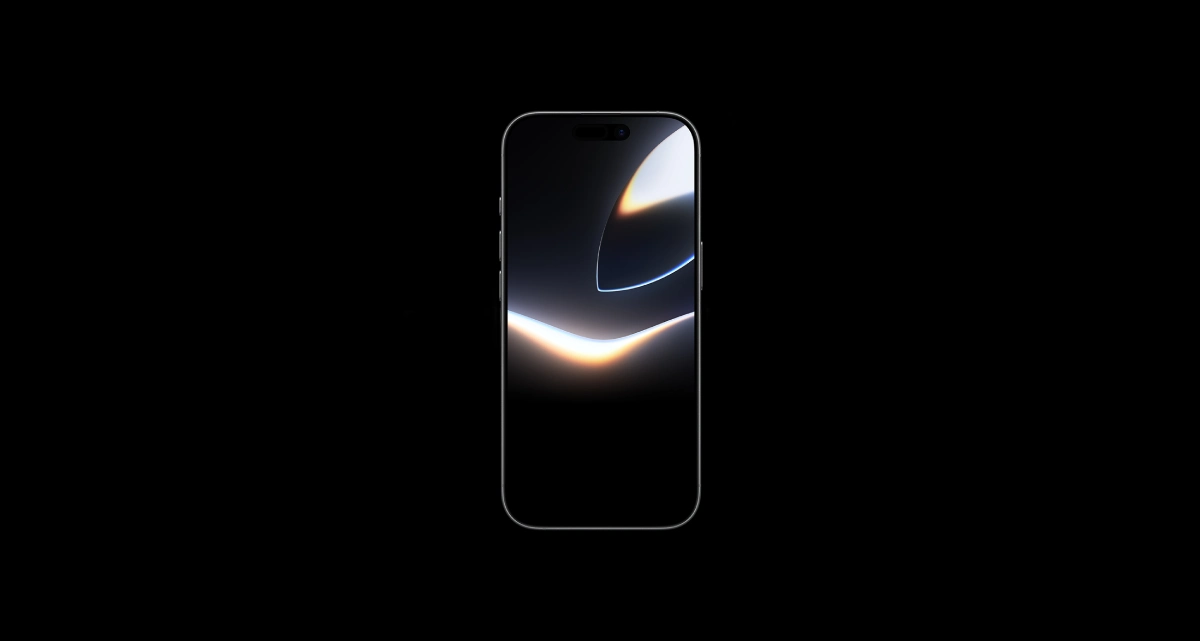
Download WWDC26 Glow All Out Wallpapers
This collection includes a Glow All Out wallpaper for all three device formats and a WWDC26 glowing logo. All the wallpapers are available in high quality and optimized for Apple devices. You can download the new WWDC26 Glow All Out wallpapers collection from the links available below.
- Download WWDC 2026 Glow All Out Wallpapers (From Our App – iPhone | Android)
- Download WWDC 2026 Glow All Out Wallpapers (Google Drive)
Once downloaded, head to Photos > tap Share > and then use it as Wallpaper. On Android go to the downloads folder, and choose the wallpaper you want to set on your smartphone’s home screen or lock screen. Open it and then tap on the three-dots menu icon to set the wallpaper. That’s it.
Explore More:
- Download Samsung Galaxy M17e Stock Wallpapers
- Download Apple ‘It’s Glowtime’ Event Wallpaper [and Live Wallpaper]
- Download the New Apple Hongdae Store Wallpaper
- Download Xiaomi Book Pro 14 Wallpapers in 4K Resolution
- Download Oppo Find N6 Stock Wallpapers
- Download Motorola Edge 70 Fusion(+) Stock Wallpapers
- You can now download Galaxy A37 and A57 wallpapers before launch!
- Honor Magic V6 Wallpapers are now available to download

