
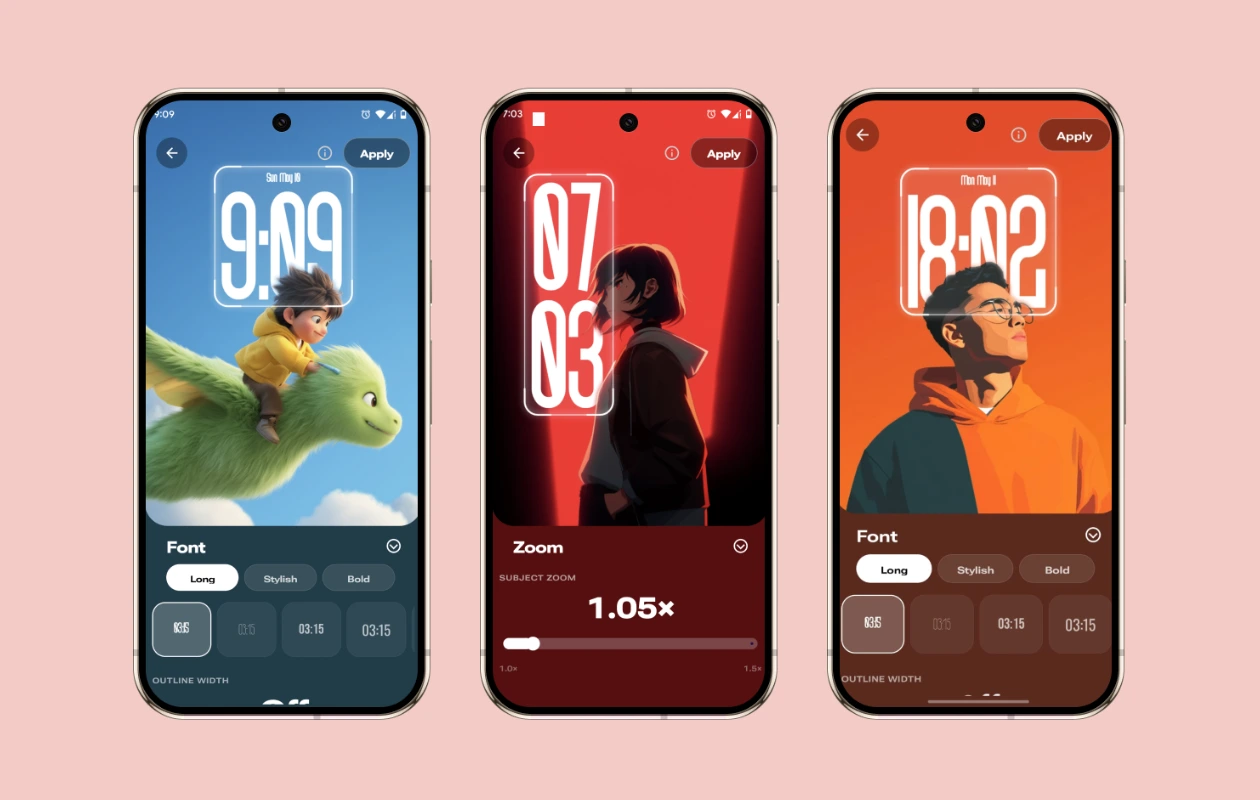
It’s been a few years since Depth Effect gained popularity after Apple introduced it with iOS. Later, a few Android OEMs also added similar functionality to their custom UI. However, the feature is still missing on many Android devices. The good news is that you can now get the depth effect clock on almost any Android phone by following this guide.
PhoneWalls v3.1 brings a major update that introduces Depth Clock along with several other new features. The Depth Clock feature works with almost any wallpaper that has a subject, and it also supports local photos. Yes, you can even add the Live Depth Clock to your own photos.


How to Get Depth Effect on any Android Phone
If you own an Android phone and want to get the depth effect clock on your home screen or lock screen, simply follow the steps below:
- Download or update the PhoneWalls app to v3.1 from the Play Store.
- Open the app and browse for a wallpaper that suits your taste. Make sure that the wallpaper includes a subject.
- Tap on the wallpaper to open the preview mode.
- Tap the Depth Clock button and wait for the initialization process to complete. The app will detect the subject and overlay the clock behind it.
- Now you can customize the clock using the available options:
- Font – Choose from various fonts like Long, Stylish, and Bold. You can also add an outline to the clock.
- Color – Select colors for the Hours and Minutes. You can add Shadow Blur and Shadow Opacity effects.
- Size – Adjust the Font Size and Clock Height. You can also pinch the clock to control these settings.
- Zoom – Use the zoom feature to make the subject appear larger or smaller.
- Clock – Choose Time Format (12h or 24h), Vertical or Horizontal Clock, Clock Angle, Show or Hide Date, Opacity, Date Format, and Date Size.


Once you’ve customized the depth clock to your liking, tap the Apply button. This will take you to your device’s default system picker. Select the screen you want to set the wallpaper to, and the depth clock wallpaper will be applied.
How to Apply Depth Effect to Your Own Photos

- In the PhoneWalls app, go to the Me tab, which is next to Favorites.
- Complete the Me tab setup, and it will display creative tools and personalized wallpapers.
- Tap the Depth Effect option, which will open the Gallery picker. Choose the wallpaper you want to use.
- The app will start initializing the setup. You can then customize the clock according to your preference in the same way as mentioned above.
- Finally, tap Apply and enjoy your new personalized home screen and lock screen.
Note: This feature may not work on some older devices or devices with limited hardware capabilities.
Apart from the depth effect live clock, you can also use other features such as background removal, advanced customization options, including different types of blur, reed glass, grain, filters, pixel art, glitch effect, and many more.
We’re planning to add more features to the app, including more fonts, styles, and colors. If there’s a feature you’d like to see, please share your feedback below.
Related Articles:
- PhoneWalls Major App Update: Material 3 Expressive Redesign and New Features Detailed
- PhoneWalls App Gets Live Wallpapers Support and More (Download Now)
- PhoneWalls App is Now Available for iOS with 2000+ Wallpapers!
- PhoneWalls v2.5.2 update is live on Play Store! Update Now!
- [v1.0.8 available] PhoneWalls App by YTECHB released for Android (Download Now)

