

Samsung Smart TVs comes with a Smart Hub app that powers the main home screen of the TV. In the home screen it displays various information, such as installed apps, live TV, and content suggestions from various apps and services. It is one of the best home screen among all Smart TV.
However, there have been many reports from owners experiencing Smart Hub screen that is stuck in the “Smart Hub is being updated” message. In this case home screen will not load on the Samsung TV. If you are one of these users who is also facing this issue, you have come to the right place. Here we’ll be sharing multiple fixes.
Samsung TV Smart Hub is Being Updated [Fixes]
When the Samsung TV displays this message or the smart home is not loading, it becomes difficult to access any of the installed apps or services on Samsung TV. In fact, for some users, their TVs go into a loop where the TV screen fades away, switches off, and switches back again, putting the TV into a never-ending loop.

Thankfully, there are a good number of fixes that you can try out on your Samsung TV if the home screen is not loading. Let’s check them out.
Perform a Soft Reset
One way to clear off the Samsung TV’s memory is by performing a soft reset. The soft reset does not delete any data and nor does it format your TV. It simply clears away all apps from the RAM and re-launches the apps when the TV boots into the OS. Follow these steps to perform a soft reset.

- Switch your Samsung TV off using the remote or pressing the power button on the TV itself.
- Now, unplug the power cable from the power outlet. Keep the TV unplugged for about a minute or two.
- Now, plug the TV back into its power source and switch it on.
- Once the TV boots up, the smart hub should work right away on your Samsung TV.
Perform an EEPROM on the Samsung TV
This is one way to perform a reset of your Samsung smart TV. This method is used when the Samsung TV stops responding because of a frozen Smart Hub screen. Before you perform a reset, make sure that you have all data backed up elsewhere and also have an idea as to what apps and services you have installed to your TV.
- Switch off your Samsung TV.
- Now, press and hold the power button on the Samsung TV. Keep the button pressed for 3 seconds or more.
- Within 10 seconds, press the power button on your remote until the TV powers itself on.
- The TV will now reboot itself and will take you to the first-time installation/setup screen.
- Complete the setup and update the apps on your Samsung TV.
Reset the Samsung Smart Hub App
Now, different Samsung TV models have different ways to perform a reset of the Smart Hub. Follow the steps to the model that is applicable to your Samsung TV.
Samsung 2012 E Series TVs
- Grab the remote for your TV and press the Smart Hub button.
- Select Tools, followed by Settings, and finally choose Reset.
Samsung 2013 F Series TVs
- Select the Menu on your TV.
- Now choose Smart Hub, followed by Reset Smart Hub.
Samsung 2014 H Series TVs
- Select the Menu option on your screen.
- Now, choose Smart Features.
- And finally, select Smart Hub Reset.
Samsung 2015 J Series TVs
- Grab the remote and select the Menu.
- Select Smart Hub and then choose Reset Smart Hub.
Samsung 2016–2019 Model TVs
- Select the Settings option.
- Navigate and select Support, followed by Self Diagnosis.
- Finally, choose Reset Smart Hub.
Samsung 2020-2021 Model TVs
- Grab the remote and press the Home button.
- With the Smart Hub on screen, select the Settings icon.
- Navigate and select Support, followed by Device Care.
- Finally, choose the Self Diagnosis option.
- Select the Reset Smart Hub tile.
- Enter the PIN when prompted.
Samsung 2022-2024 Model Smart TVs
- Select the Settings icon from side menu and choose All Settings.
- Navigate to Support and select Device Care.

- Finally, choose the Self Diagnosis option.
- Select the Reset Smart Hub icon, enter the PIN, and the Smart Hub will be reset.


Samsung 2025 Model Smart TVs
- Select the Settings icon from side menu and choose All Settings
- Now, select Support followed by Device Care.
- On the Device Care screen, select the Reset Smart Hub tab.
- The Smart Hub will be reset right away.
These steps may also vary depending on the OS version on your TV.
Check Your Internet Connection
Samsung’s Smart Hub relies on an internet connection to stay updated and display recommendations from various streaming services. Having poor or spotty internet connection can cause the Smart Hub to not work properly and have errors.
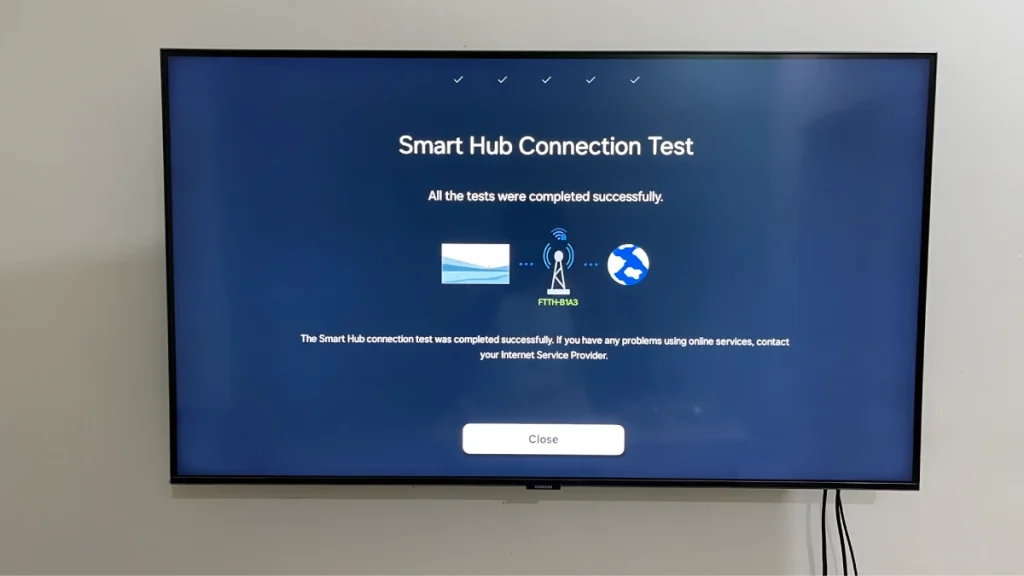
Do check your internet connection and see if it’s working. If there is a network issue, you might have to wait a while for the internet to function normally, or you can switch to another internet connection source to test and see if it is the network or the Smart Hub having issues.
Reset the Network Settings on your Samsung TV
Sometimes the smart hub doesn’t load due to the network settings on your Samsung smart TV. In this case, it is ideal to perform a Network Reset on the TV and connect to the network again to see if this helps solve the issue.
- Select the Settings option using the TV remote.
- Now, scroll and select the Connection option.
- Choose Network Settings, followed by Reset Network option and confirm the Reset Network option.
- Select Yes, and the network settings on your Samsung TV will reset.
- You might need to reconnect to your Wi-Fi network.


Check for Firmware Updates on your Samsung Smart TV
Firmware updates can either make or break functions or services that have been running smoothly. However, it is always a good habit to check for software updates for your Samsung TV in case there is a fix for the Smart Hub that is stuck on the being updated screen.

We have a detailed guide that shows you how to check for firmware updates on your Samsung TV. Additionally, there are also steps that you can follow to update the software manually by downloading it to n your PC.
Perform a Complete Factory Reset of your Samsung Smart TV
If none of the above troubleshooting methods haven’t worked for you, the ideal solution is to perform a factory reset of your Samsung smart TV. When you perform this reset, all the data, settings and apps for your particular Samsung TV will be erased. So try to take a backup of all the data or use your phone to note down passwords and list of apps and accounts that have been signed in to the Samsung smart TV.

We’ve a detailed guide that shows you how you can perform a factory reset of any Samsung smart TV model. You can check the guide out by heading here.
Closing Thoughts
This concludes the guide on the troubleshooting steps that you can follow, in case the Smart Hub screen on your Samsung TV is displaying the being updated message or is completely frozen. If you still have issues with the Smart Hub, it would be ideal to contact the Samsung Customer Service for TVs and see if they can help or guide you with the Smart Hub problem that you are facing.
If you have other solutions that have worked for you, feel free to leave them below.
Also Check:

