

Meta has been steadily working on improving WhatsApp, and this year alone, the app has received a host of new features. One such addition brings multiple account support to iOS, which is now available to users worldwide. Android users have had access to this for over a year now, and it is finally iPhone’s turn to catch up. So, how do you set it up? Let’s find out.
In the era of eSIM and dual-SIM phones, it is fairly common for people to use multiple numbers on a single device, whether for business, personal use, or social purposes. If you use multiple numbers and want to start using your secondary number on WhatsApp for iOS, you have come to the right place. Here is how to officially set up two WhatsApp accounts on your iPhone.
How to Use Multi-Account Feature on WhatsApp for iOS
WhatsApp finally lets iOS users to use two WhatsApp accounts, all you need to do is update WhatsApp to the latest version available on the App Store. The features is available for iOS 18 or later version, you can easily manage multiple accounts, it is a perfect feature for work and personal use. The only requirement is that your iPhone supports dual SIM (eSIM or physical SIM), such as the iPhone SE (2nd Gen), iPhone XR, or newer.
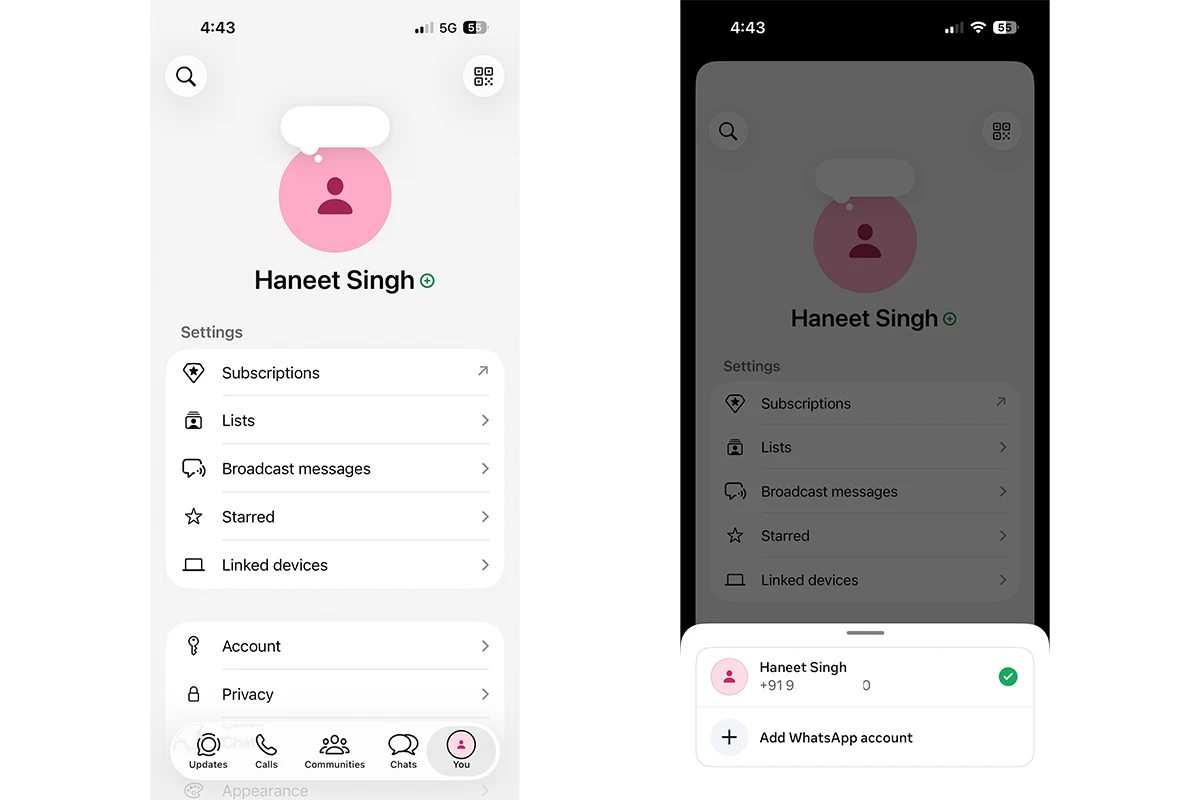
Steps:
- Open WhatsApp on your iPhone.
- Tap You (Your Profile) from the bottom navigation bar.
- Tap + icon on the right side of your profile name.
- Select + Add WhatsApp account option and follow the on-screen instructions to set up your secondary account. The process is identical to setting up your primary WhatsApp account.
- Once verified, you will start receiving messages for both numbers.
Note: When you receive a message on your secondary number, the notification will show the text “You have a new WhatsApp message.” To view the sender’s details and reply, you will need to switch accounts inside the app.
How to Use Two WhatsApp Accounts on iPhone [Second Method]
WhatsApp Business is another way to run multiple accounts on your iPhone. Primarily used by businesses to promote and market themselves through WhatsApp, it serves as the second official method for managing multiple WhatsApp accounts on iOS.
- Install WhatsApp Business from the App Store.
- Open the App & Accept terms by tapping the Agree and continue button.
- On the next screen, you will see options for whether you want to use or convert your current account to a Business account or create a new account using WhatsApp Business. Please use the Second option.
- Now, enter your phone number, which you want to use as your secondary number, and verify it with OTP.
- To set up your profile, type your name, and when asked for the account type, select “Not a Business.”
- Tap Done.
That’s it. These are two official ways to use multiple WhatsApp accounts on iPhone. If you’ve any queries left, drop them in the comment box. Also, share this article with your friends.
Explore More:
- How to Use WhatsApp Plus Features for Free on Android and iPhone
- How to Connect WhatsApp to Gemini to Send Messages Completely Hands-Free
- Everything You Need to Know About WhatsApp Plus, Instagram Plus, and Facebook Plus
- WhatsApp starts testing read-once disappearing messages on iOS
- WhatsApp gets Smarter Storage Controls, Multiple Account Support on iOS, and More
- WhatsApp Launches Parent-Managed Accounts for Pre-Teens [Setup Guide]

