
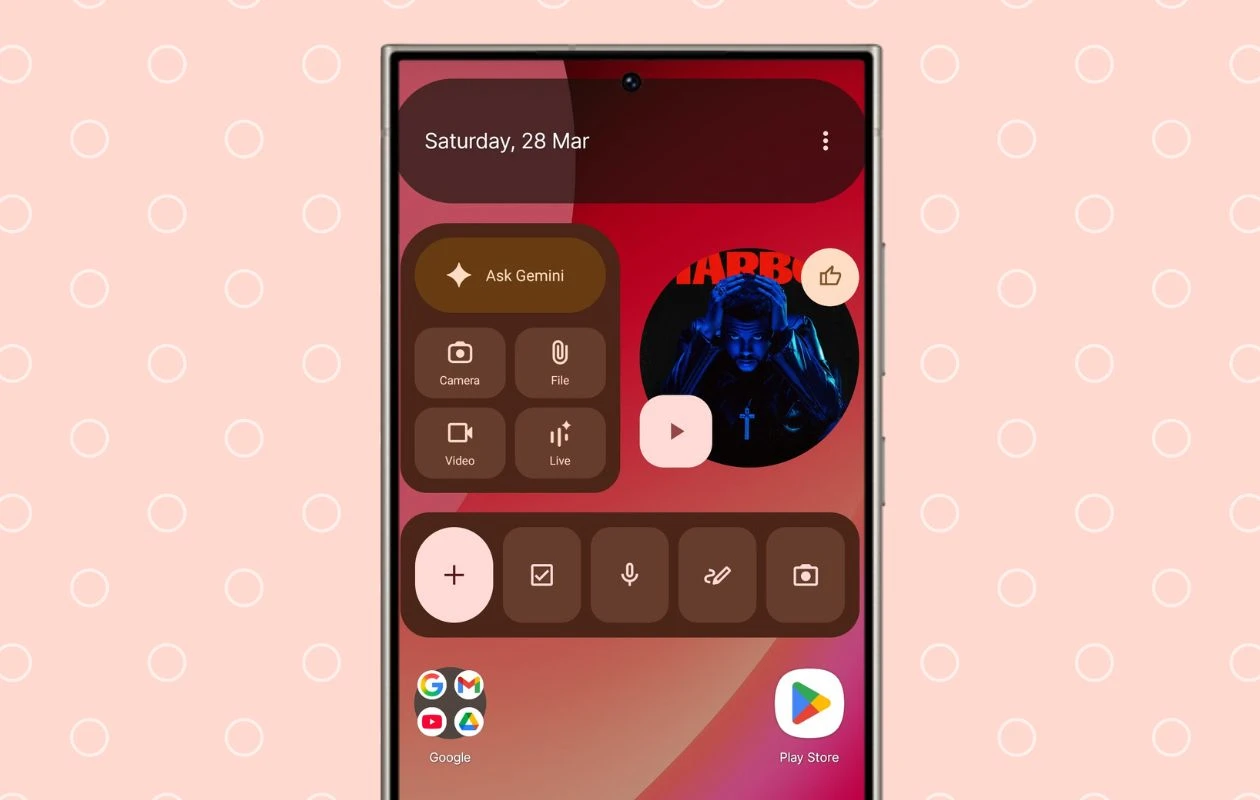
Google’s Pixel lineup of devices is one of the best when it comes to the UI. You have a simple yet clean stock Android UI that is perfect, without any additional fluff or frills. But what if you own a Samsung smartphone and want to make it feel like you are enjoying the Pixel UI experience? It’s quite easy to replicate it.
The beauty of Android lies in the customization aspect – a feature that a lot of users take for granted. Pairing customization with the numerous apps that can be used to give your Android smartphone the look that you like.
So, if you are looking for a way to make your Samsung smartphone like a Google Pixel in terms of the UI, we’ve got you covered.
Making your Samsung Smartphone Look Like a Google Pixel
There are many settings you can change on your Samsung smartphone to make it feel like a Google Pixel device. Here’s a list of what we will be covering
- App Launcher
- Wallpaper
- App Icons
- Widgets
- Notifications and Ringtone Sounds
- Google Keyboard
Let’s look at how to change each of these elements on your Samsung smartphone to make it look like a Google Pixel.
Changing the Launcher
The launcher is one of the easiest elements to change on your Samsung smartphone. Yes, the Samsung Home app is perfect, but it does not have the look and feel of the stock Android app launcher.
For the launcher experience, I would recommend checking out Lawnchair and Hyperion Launcher. Both launchers replicate the Google Pixel-style app and home screen and offer several useful features and customization options. Apart from these launchers being free, they also have support for third-party app icons – a feature that we will be talking about quite soon.

Both launchers come with the Google Search bar – a very familiar sight on the Google Pixel lineup, which you can place either at the top or the bottom of the screen. Even the app drawer shares similarities with the app drawer from the Pixel. Diving into the settings page of both launchers, you can set the number of rows and columns to match what you get on the Pixel lineup.
Apart from these settings, these launchers also come with a decent number of Pixel-style widgets that you can add to the home screen of your smartphone.
Setting up the Wallpaper
Wallpapers are another great way to give your smartphone the look of whatever smartphone brand you are trying to replicate. One of the best ways to get the Google Pixel wallpaper is by making use of our free wallpaper app – PhoneWalls.

The app has a large collection of wallpapers from various smartphone brands, and yes, there are stock wallpapers from the numerous Google Pixel devices that have been released, including the latest Google Pixel 10a.
To use the wallpaper as your device’s background, simply tap on the Pixel wallpaper of your choice and tap on the Apply button. You can choose the download button if you want to save the wallpaper to your device’s storage.
Color Theme and Pallets
One of the coolest features of the modern Android operating system is the option to set the theme and the icons to match the color palette of your wallpaper. Now, if you have a modern Samsung smartphone, you can easily get this sorted out by following these steps.

- Open the Settings app and scroll to Wallpaper and Style.
- Switch the toggles on for Color Palette and Apply Palette to App Icons.
- Now, you can pick what color style you want by selecting either wallpaper colors or basic colors.
- Select the color that you like, and now you have an almost similar-looking home screen to the Google Pixel.
Getting an Icon Pack
To make the home screen even more interesting, you can use an icon pack. Since we are using third-party launchers that have support for third-party icon packs, this will be a simple install and go setup from the Play Store.
The Play Store has a good number of free as well as paid icon packs that you can use. From the numerous choices out there, you can choose any of the following Pixel-style icon packs.
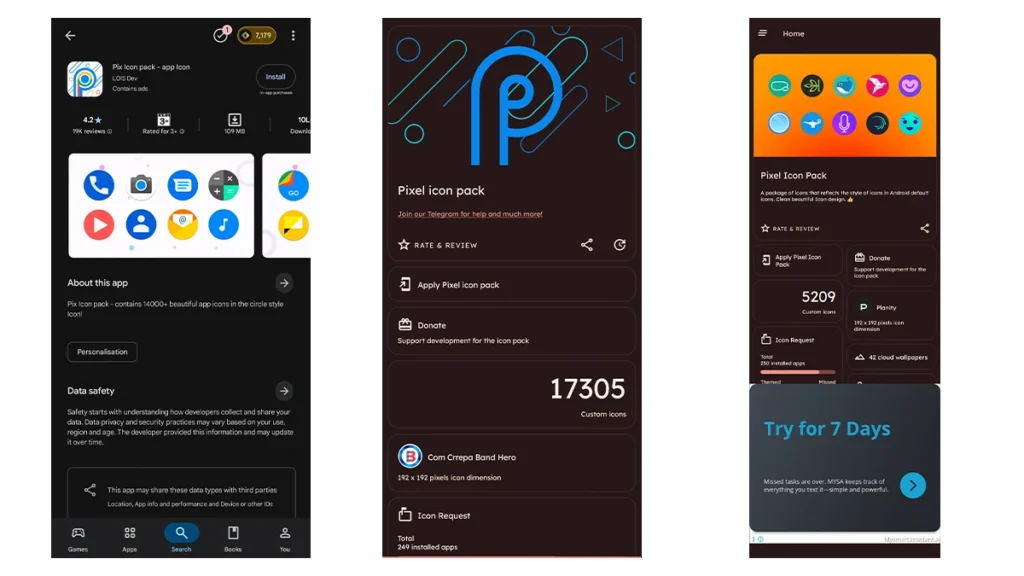
Once you have the icon pack set up, play around with the icon settings in your launcher and adjust the size and even the shape of the icon.
Pixel Style Widgets
Yes, there are dedicated Pixel-style widget apps that you can install from the Play Store, like the Material You Widgets app that has a stunning collection of Material 3 expressive-style widgets. But, if you don’t want to purchase this app, you can simply decorate your home screen by making use of the widgets from the various first-party Google apps that you have installed on your Samsung smartphone.

Notifications and Ringtones
Now that you have the look and feel of the Google Pixel on your Samsung smartphone, it’s time to give it a few audible effects in the form of notifications and ringtones. There are many places that you can look on the internet to get the right notifications and ringtones for the Pixel on your Samsung.
One way is by making use of a very popular app called Zedge. This is the app for all sorts of notifications and ringtones from all devices and brands. You can download Zedge from the Play Store for free. Once you have installed it, simply use the keyword Pixel in the app’s search bar, and you should find everything that you need.
The other way to get all the Pixel notifications, ringtones, and alarm tones is to make use of this Mediafire link as provided by the team at Android Police, who have created a complete collection of Pixel sounds for you to use.
Once you have downloaded the file, extract it and check out all the sounds. Now, pick the sounds that you like and place them by following these steps.
- Open the My Files app on your Samsung smartphone.
- Now, tap on Internal Storage.
- Scroll down, and you should see folders like Ringtones, Notifications, and Alarms.
- Simply paste the sound files that you want to use with your Samsung smartphone into the respective folders.
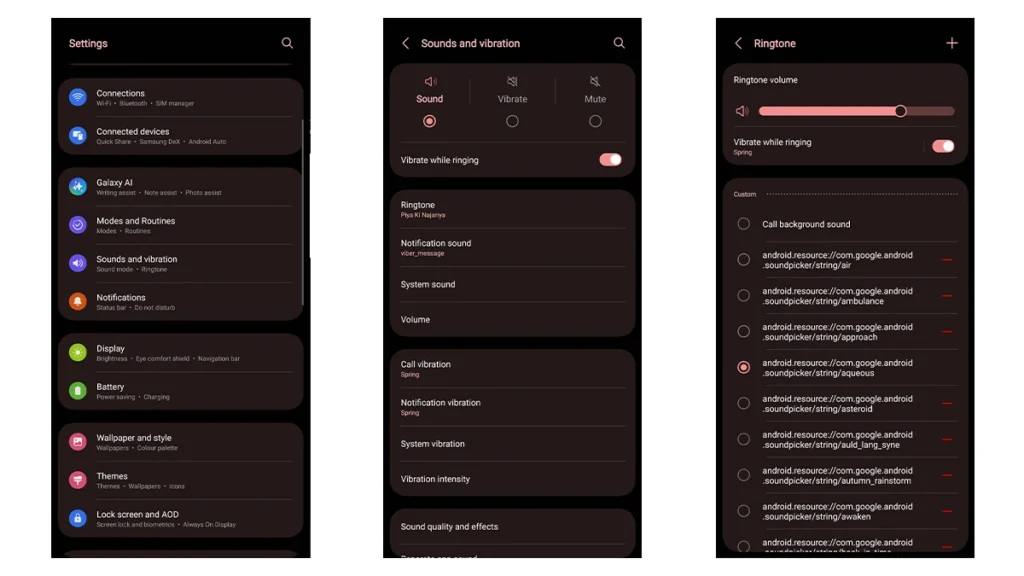
To change the ringtone or notification sounds on your Samsung smartphone, follow these steps.
- Open the Settings app.
- Scroll and select the Sounds and Vibrations option.
- Tap on Ringtone or Notifications to change them to the Pixel sounds that you just downloaded.
- And that’s how you can set up the sounds of Pixel for your Samsung smartphone.
Use the Google Keyboard
The last and final way to make your Samsung feel like a Pixel smartphone is by using the Gboard app. Yes, the Gboard app is one of the best keyboard apps for Android smartphones. By default, Samsung uses its own in-house first-party keyboard. Once you start using Gboard, you can customize it to your liking and use it as the default keyboard app.
Closing Thoughts
This concludes everything that you can change on your Samsung smartphone to make it look and feel like a Google Pixel smartphone. You will still have the goodness of One UI, but with the visual elements of the Google Pixel.
Apart from these changes, I would also want to change the fonts on One UI, but it’s too complicated, and a lot of the methods that used to work on older One UI versions no longer work now. Instead, you’ll have to download and use fonts from the Galaxy App Store only.
Related Articles:

